The configuration of the Qbus videophone is performed on the device itself.
While creating a doorbell in the Qbus Control app, you received an overview of the data at the end:
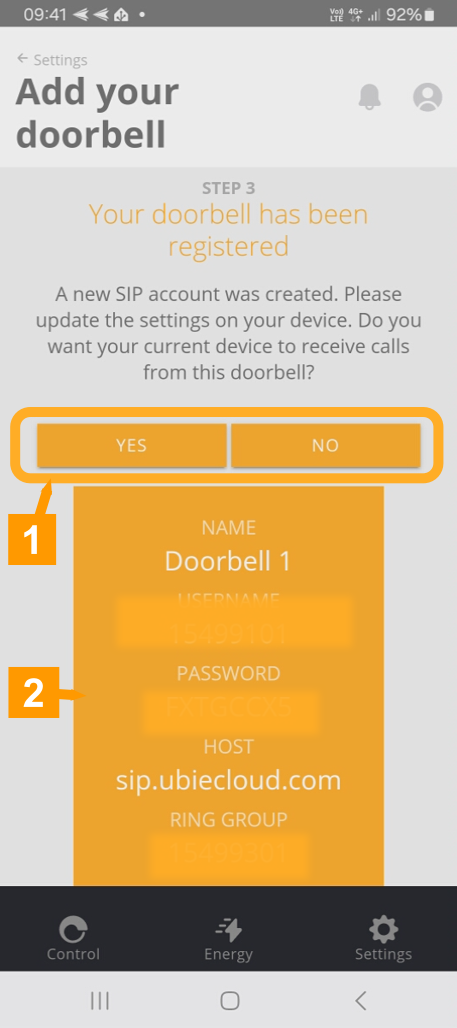
Where:
NAME: The name of the outpost.
USERNAME: The username of your account.
PASSWORD: The password of your account.
HOST: The serverver to which the outpost should connect.
RINGGROUP: The ring group to which the entry panel should call.
Surf to the product using your web browser.
The default IP address for this entry panel is 192.168.1.250.
User name: admin
Password: 1234
For security reasons, it is recommended to modify these default settings.
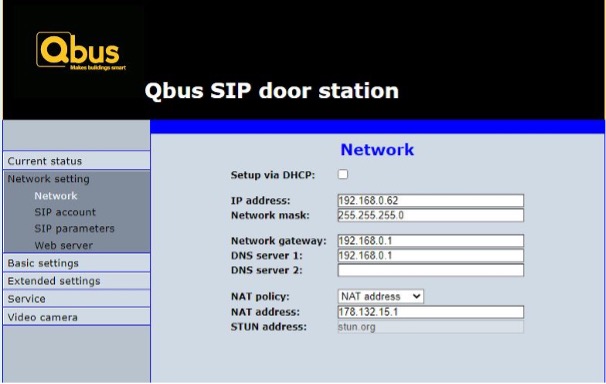
In the menu under Network settings - select Network and then set your IP settings here.
In the SIP account menu, set the SIP data that the Ubie App provides for this device:
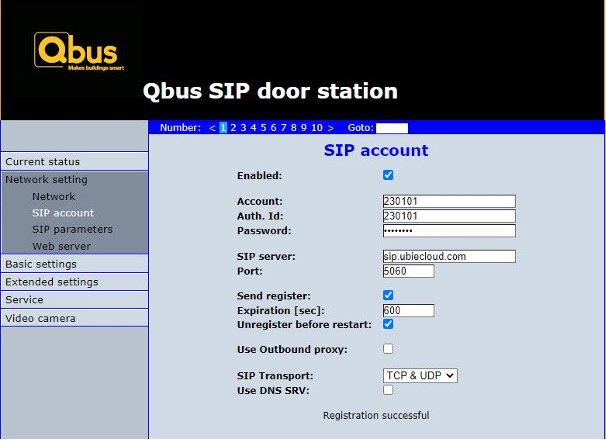
Enabled: This must be checked to enable SIP server functionality.
Account: Enter the account number here.
Auth. Id: Enter the account number here.
Password: Enter the password here.
SIP Server: Enter the server url name sip.ubiecloud.com here.
SIP Transport: Set the SIP transport to TCP.
Please note: For Orange customers, TCP connection may not work. Please consult your modem manual to disable the SIP ALG setting. If your modem does not have this setting, or you still experience connection problems, change the SIP Transport setting to UDP!
Maintain the other settings as shown in the image.
Next, open the SIP parameters menu.
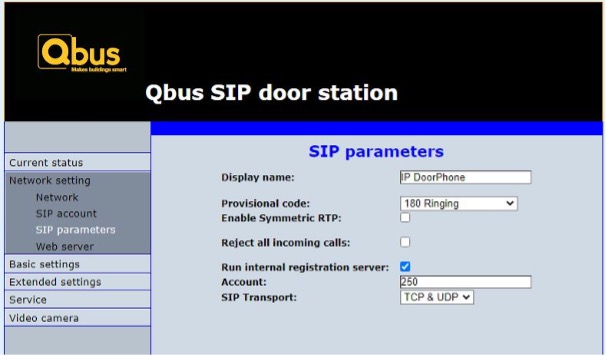
Display name: Enter the name of your phone here that you want to see when the doorbell rings.
Please keep the other settings as shown in the picture.
As a final step, open the Basic settings - Phonebook menu.
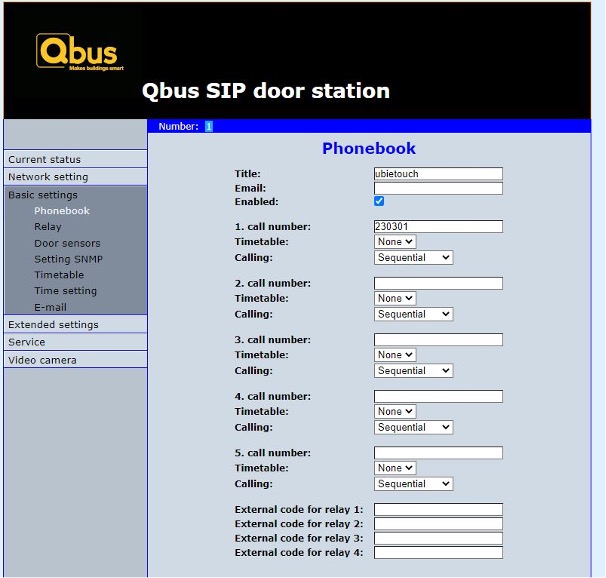
Here you add this ubiecloud account to account number 1.
Title: Enter a name here: for example, “Qbus Doorphone”.
1. call number: enter the RINGGROUP here.
Keep the other settings as shown in the image.