¶ Introduction
With a scene you can send a number of Qbus outputs and/or Ubie devices to a certain state.
You can create new scenes in your Ubie which can then only be controlled vie Control or you can expand scenes already created in your Qbus installation. By expanding a Qbus scene you can for example add your Sonos to this scene and send it to a certain state. E.g. turn off Sonos when operating the All Off scene.
¶ Create new scenes
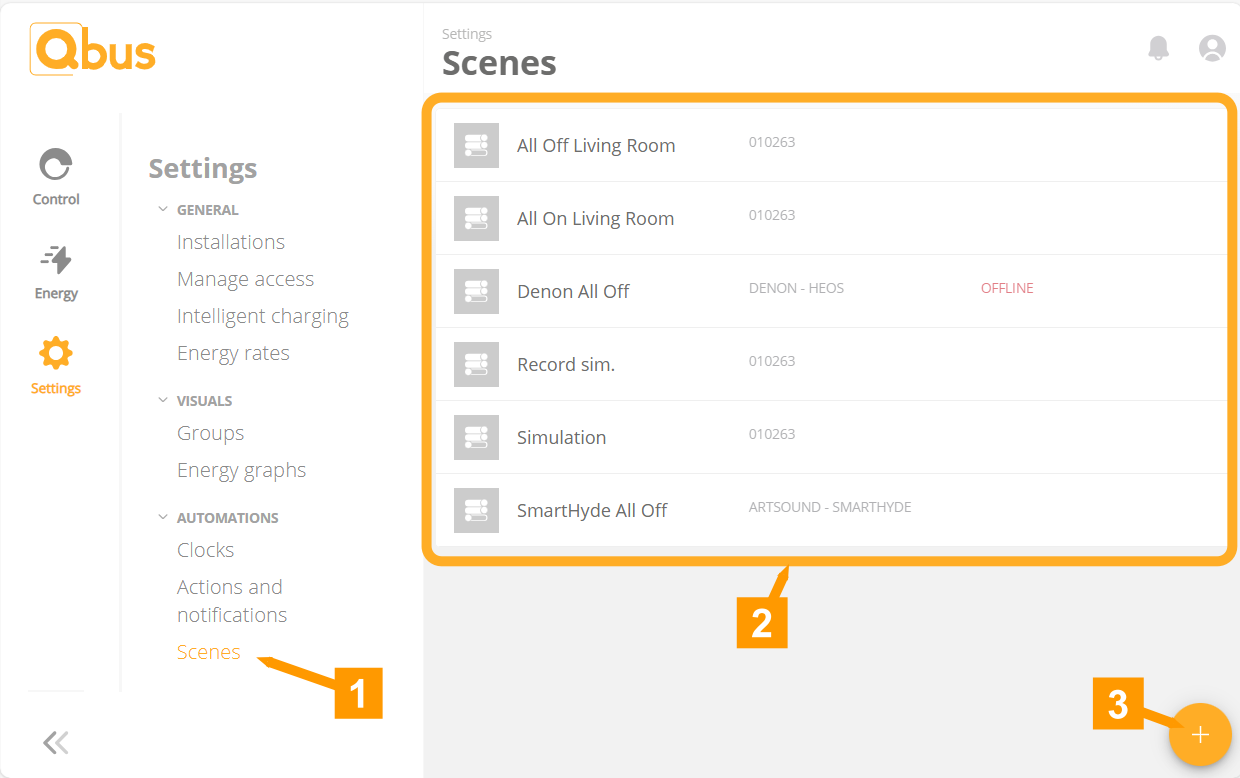
- Under Settings go to Scenes.
- Click + to create a new scene.
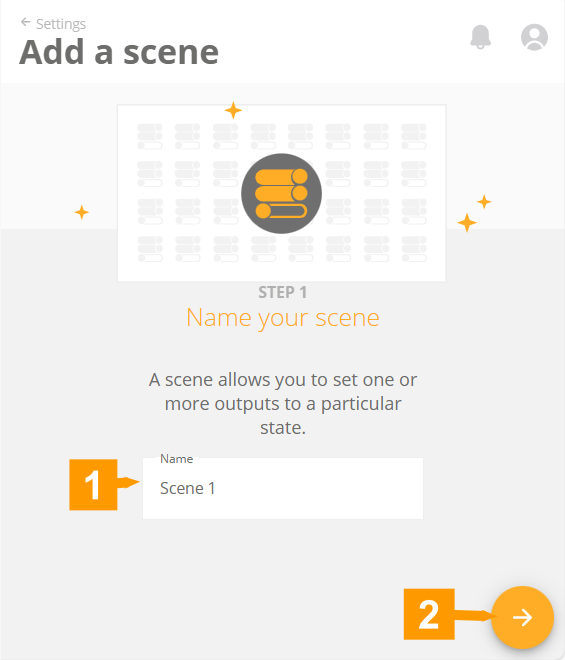
- Give a name to your scene.
- Click the arrow to proceed to the next step.
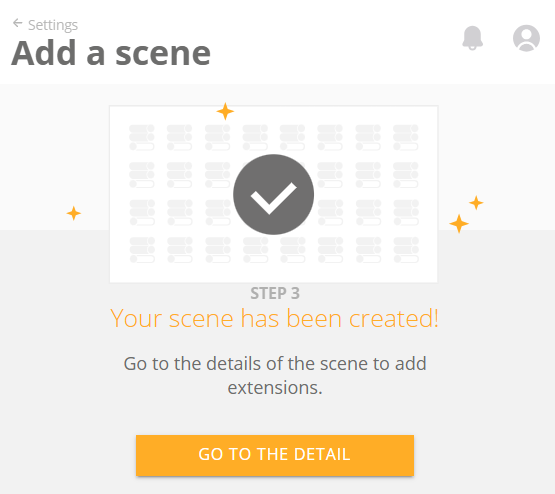
Your sphere has been created. Click Go to the detail to add outputs to this sphere.
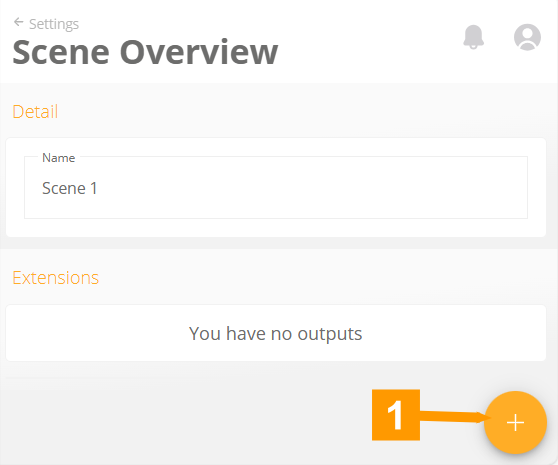
- To add a device to your scene, click +.
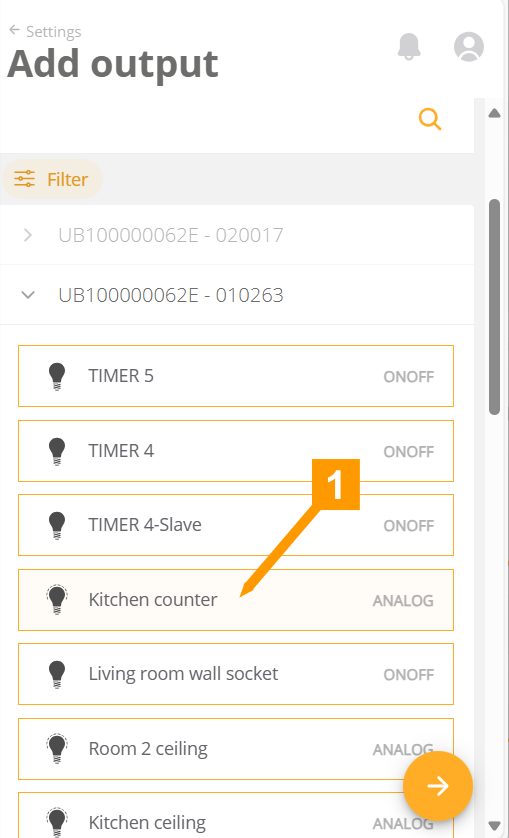
- Choose a device you want to add to your sphere.
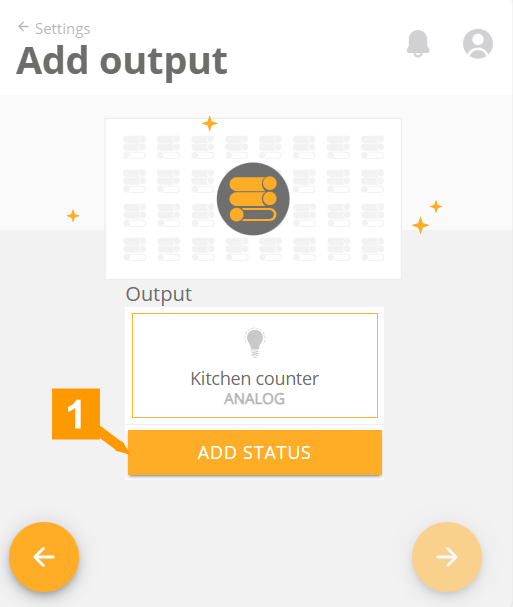
- Click Add status.
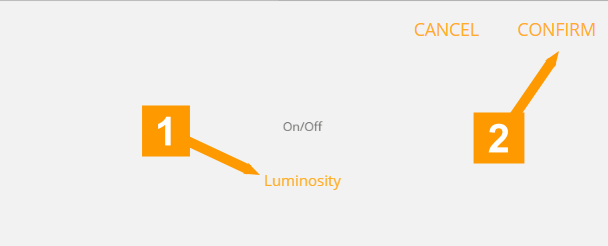
- Choose which status you want to change.
- Click Confirm.
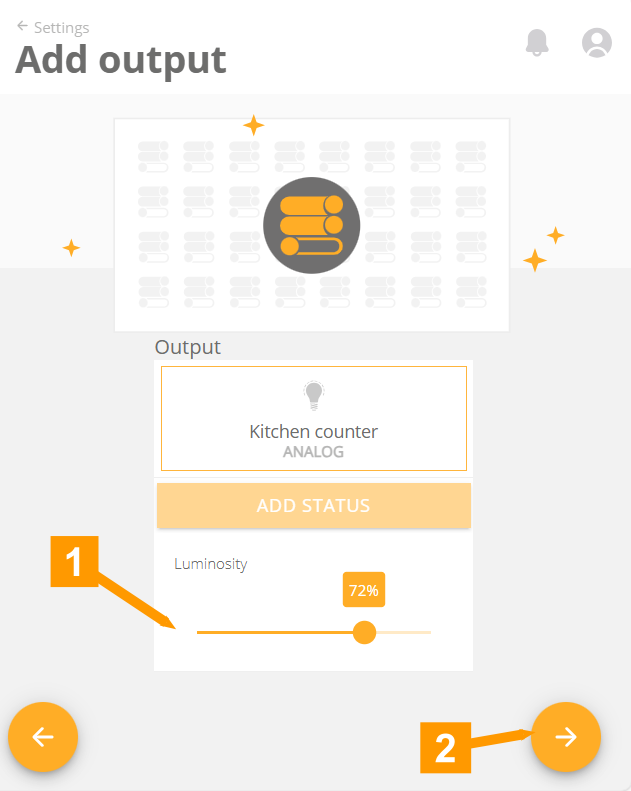
- Set the status.
- Click the arrow to proceed to the next step.
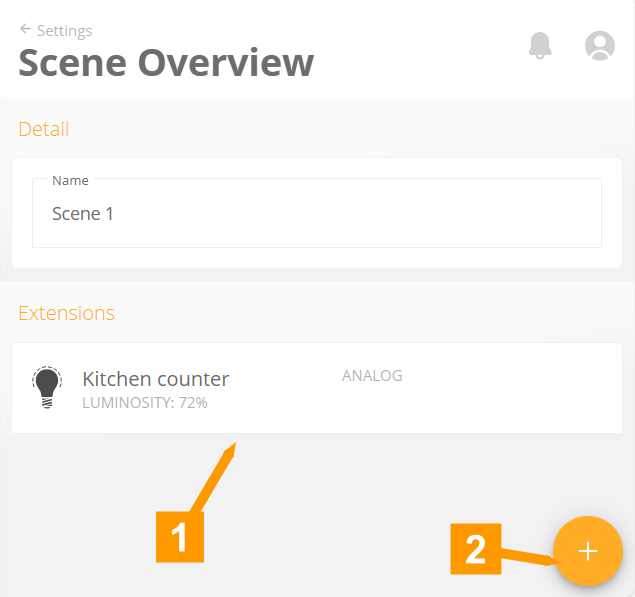
- Here you have an overview of the devices in your scene with their status.
- Click + to add more devices.
¶ Expand Qbus scenes
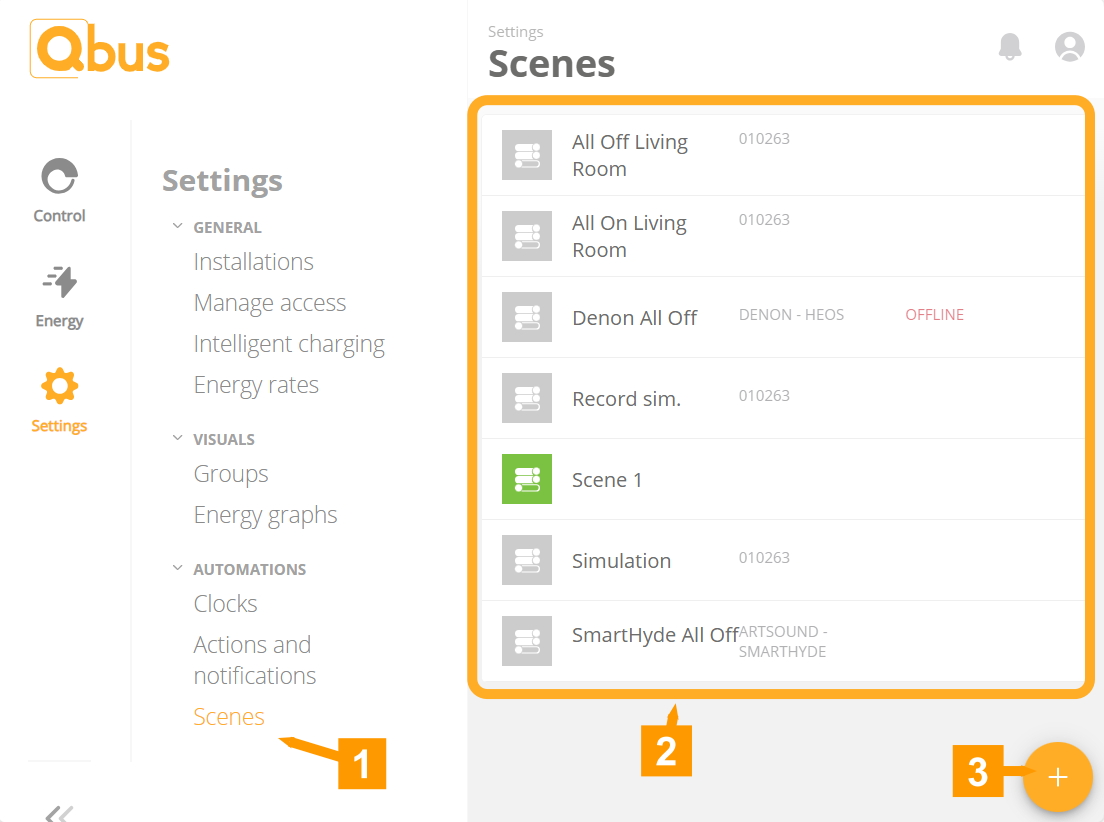
- Under Settings go to Scenes.
- Choose the sphere you wish to expand.
Scenes with a green icon in front of their name are already expanded.
The gray Scenes are Scenes of your Qbus installation. Next to the name of the Scene is the serial number of the controller.
For example, to link an Ubie device to a Qbus Scenes, follow the steps as you would create a new sphere.